
DISCOVERY 665 - Bluetooth Headset PLANTRONICS - Free user manual and instructions
Find the device manual for free DISCOVERY 665 PLANTRONICS in PDF.

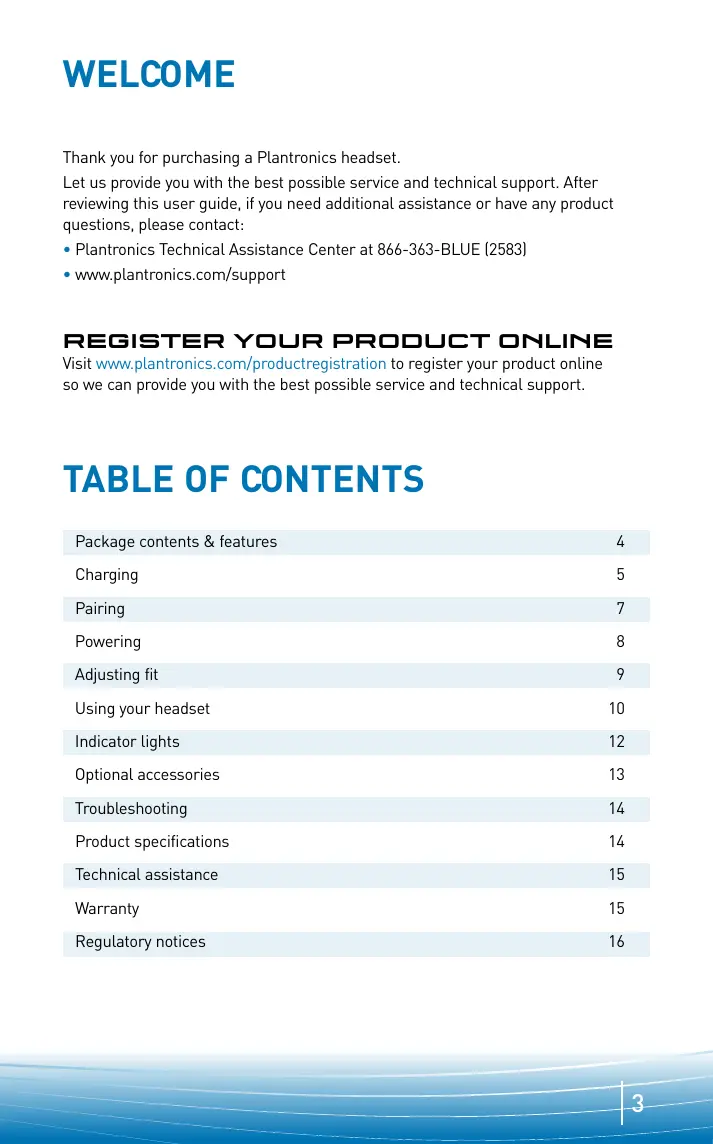


| Product type | Bluetooth headset |
| Brand | Plantronics |
| Model | Discovery 665 |
| Weight | Approximately 10 g |
| Talk time | Up to 3.5 hours |
| Standby time | Approximately 80 h |
| Charging time | 3 hours |
| Bluetooth range | 10 meters (33 feet) |
| Bluetooth version | 2.0 |
| Supported profiles | Hands-free and headset |
| Battery type | Lithium-ion |
| Power supply | 5 V DC, 300 mA |
| Charge level indicator | Red light: 3 flashes = more than 2/3, 2 flashes = between 1/3 and 2/3, 1 flash = less than 1/3 |
| Key features | Auto answer, voice dialing, last number redial, power saving mode, mute, call reject, call transfer |
| Included accessories | Car charger adapter, USB charging cable, charging case, 3 soft gel ear tips, ear stabilizer |
| Care and cleaning | Clean with a soft, dry cloth. Do not use abrasive products. |
| Safety | Do not use at high volume for extended periods. Replace only with a non-rechargeable AAA battery. Do not expose to water. |
| Spare parts and repairability | Accessories available (ear hook, USB charger, etc.) on the Plantronics website. For repair, contact technical support. |
Frequently Asked Questions - DISCOVERY 665 PLANTRONICS
User questions about DISCOVERY 665 PLANTRONICS
0 question about this device. Answer the ones you know or ask your own.
Ask a new question about this device
Download the instructions for your Bluetooth Headset in PDF format for free! Find your manual DISCOVERY 665 - PLANTRONICS and take your electronic device back in hand. On this page are published all the documents necessary for the use of your device. DISCOVERY 665 by PLANTRONICS.
USER MANUAL DISCOVERY 665 PLANTRONICS
by:plantronicsDESIGN

Thank you for purchasing a Plantronics headset.
Let us provide you with the best possible service and technical support. After reviewing this user guide, if you need additional assistance or have any product questions, please contact:
- Plantronics Technical Assistance Center at 866-363-BLUE (2583)
www.plantronics.com/support
REGISTER YOUR PRODUCT ONLINE
Visit www.plantronics.com/productregistration to register your product online so we can provide you with the best possible service and technical support.
TABLE OF CONTENTS
| Package contents & features | 4 |
| Charging | 5 |
| Pairing | 7 |
| Powering | 8 |
| Adjusting fit | 9 |
| Using your headset | 10 |
| Indicator lights | 12 |
| Optional accessories | 13 |
| Troubleshooting | 14 |
| Product specifications | 14 |
| Technical assistance | 15 |
| Warranty | 15 |
| Regulatory notices | 16 |
PACKAGE CONTENTS & FEATURES
PLANTRONICS DISCOVERY™ 655 AND 665
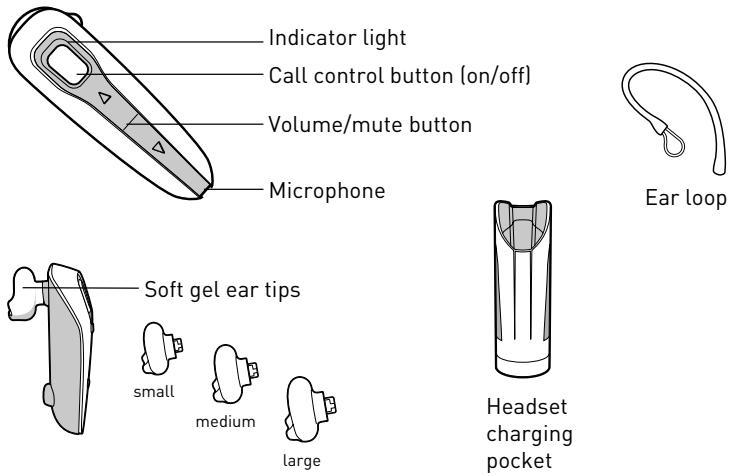
DISCOVERY 655 ACCESSORIES
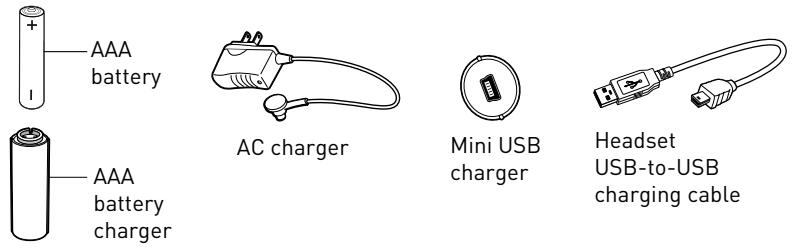
DISCOVERY 665 ACCESSORIES
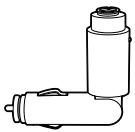
Vehicle power adapter
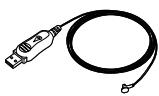
USB charge cable
PLANTRONICS DISCOVERY 655
Before using, you must first charge your headset.
1 hour = minimum charge

3 hours = full charge

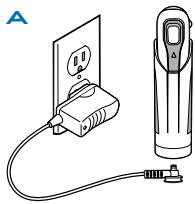
Option A: Using the included AC charger
The indicator light flashes red while charging and turns off when fully charged.
- Plug the AC charger into the base of the charging pocket and connect it to your power source.
- Insert the headset into the charging pocket.
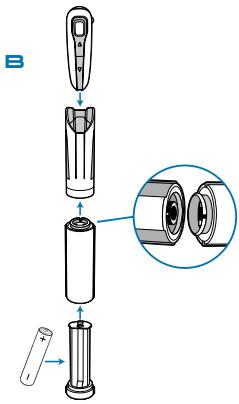
Option B: Using a AAA battery
One AAA battery recharges the headset to full capacity up to three times.
- Twist the bottom of the AAA battery charger anticlockwise and release the battery holder.
- Insert the battery into the AAA battery holder.
- Slide the battery holder back into the battery charger and turn clockwise.
- Snap battery charger onto charging pocket. Ensure that the indentation on the battery charger connector aligns with the shirt clip on the charging pocket.
- Insert the headset into the charging pocket.
CAUTION
Only replace with a non-rechargeable AAA battery.
B
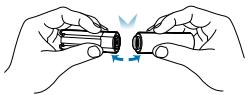
DISCONNECTING COMPONENTS
To separate components, grasp both the battery charger and the charging pocket with the shirt clip facing you. Bend the components back and they will snap apart.
NOTE Do not twist the components apart.
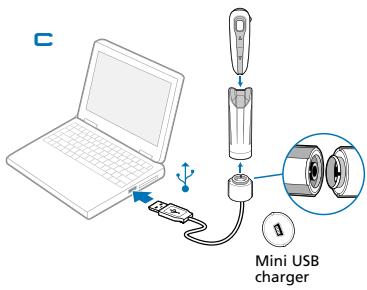
Option C: Using the Mini USB-to-USB charging cable
- Snap the mini USB charger onto the charging pocket.
- Use the mini USB-to-USB charging cable to connect the headset to your computer or laptop.
- Turn your computer or laptop on.
PLANTRONICS DISCOVERY 665
Before using, you must first charge your headset.
1 hour = minimum charge

3 hours = full charge

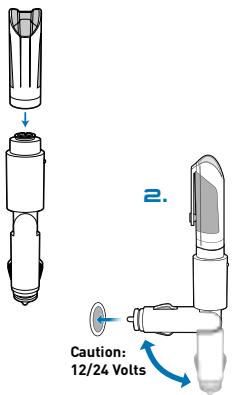
Option A: Using the vehicle power adapter.
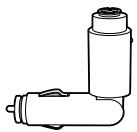
- Snap the headset charging pocket onto the vehicle charging adapter as shown.
- Plug the vehicle power adapter into vehicle power socket and adjust the charging pocket angle so that the headset is within easy reach.
CAUTION Select a mounting option that does not interfere with car controls or air bag deployment.
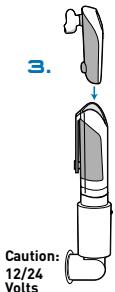
- Dock the headset into the charging pocket as shown. If power is available to the vehicle power socket, the charging pocket will flash when the headset is docked.
NOTE The headset charges only when power is supplied to the vehicle power socket.
The green indicator on the vehicle charging adapter lights when power is supplied.
Option B: Using USB charging cable
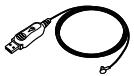
- Use the USB charging cable to connect the headset charging pocket to your computer or laptop.
- Turn your computer or laptop on.
1.
3.
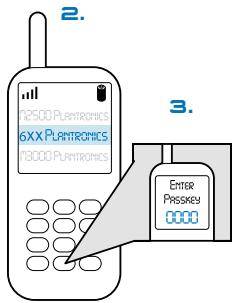
Before using your headset for the first time, you must pair it with your Bluetooth phone and ensure that the headset is fully charged. For instructions on setting up and pairing with Bluetooth® devices other than mobile phones, please consult your Bluetooth device user guide.
Begin with headset turned off.
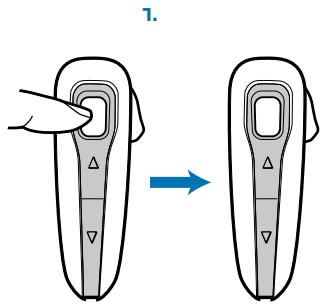
- Press and hold down the call control button for 10 seconds until the headset status indicator begins to flash red then blue.
The headset is now in pairing mode for the next 60 seconds.
- While the headset is flashing, use the phone menu to search for Bluetooth devices and select "6xxPlantronics."
- When prompted for a password, enter 0000. Headset will flash blue when paired successfully.
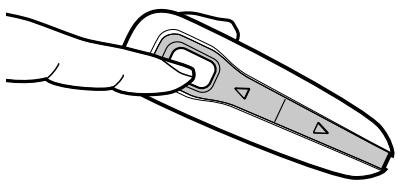
-
Turn on the headset by pressing and holding the call control button until the indicator light glows blue. If you are wearing the headset, you will hear a beep when the power turns on. The indicator light will flash blue every 5 seconds when the power is on.
-
Turn off the headset by pressing the call control button for 6-8 seconds until the indicator light glows red or until you hear the beep. The indicator light remains unlit when the power is off.
CHARGE LEVEL INDICATION
When the headset is turned on, the indicator light will briefly show the headset charge level.
3 red flashes = greater than 2/3 battery charge
2 red flashes = 1 / 3 to 2/3 battery charge
1 red flash = less than 1/3 battery charge


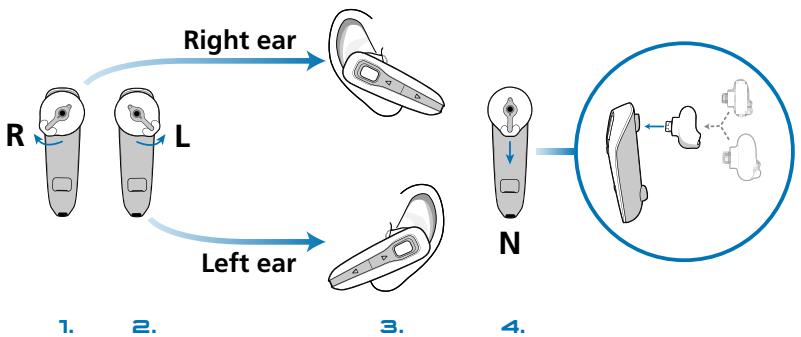
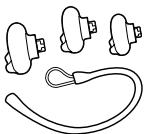
The Plantronics Discovery 655 and Discovery 665 headsets come with three soft gel ear tips and an optional ear loop.
- The medium-sized ear tip is preinstalled and aligned for wearing on the right ear (R).
- For left ear wearing, twist the ear tip anticlockwise.
- Place the headset into your ear and check to see that it fits comfortably. If the headset is either too tight or too loose, remove the medium-sized ear tip from the headset by
turning the ear tip to the centre or neutral position.
- In the neutral position, the ear tip can easily be removed by pulling the ear tip directly away from the headset.
Next, select the ear tip size that fits most comfortably in your ear. Hold the ear tip with the elongated edge pointing down toward the neutral position and then push the ear tip onto the headset.
USING THE OPTIONAL EAR LOOP
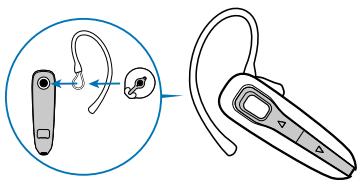
The ear loop may be attached to the headset to improve stability.
- Remove the ear tip from the headset by turning the ear tip to the centre or neutral position and pulling the ear tip away from the headset.
- Attach the ear loop between the ear tip and the headset.
- Replace the ear tip.
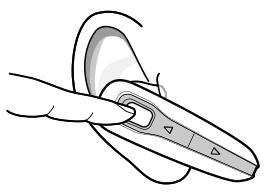
ANSWERING/ ENDING/MAKING CALLS
To answer or end a call, briefly press the call control button.
To make a call, enter number on your phone, press send, and the call is automatically transferred to the headset; no need to press the call control button.
NOTE When answering a call, wait until you hear a ring from the headset itself (not the ring from your phone), before pressing the call control button.
AUTO ANSWER
If the headset is placed in the carrying pocket when a call is received, the charging pocket will vibrate (Discovery 655) or light up (Discovery 665) when connected to power. Removing the headset from the pocket will automatically answer the call. Returning the headset to the charging pocket will end the call.
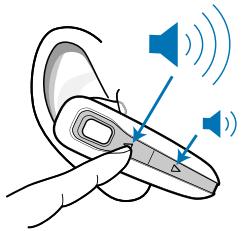
ADJUSTING VOLUME
To increase listening volume, press the upper end (+) of the volume/mute button. To decrease listening volume, press the lower end (-) .
WARNING: Do not use headphones/headsets at high volumes for an extended period of time. Doing so can cause hearing loss. Always listen at moderate levels.
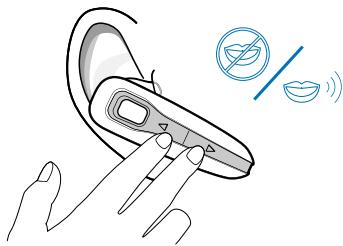
MUTE A CALL
To turn the mute on while on a call, press both sides of the volume/mute button simultaneously until you hear a beep.
To turn the mute off, press both buttons again.
ADDITIONAL FEATURES
Redialling last number
To activate last number radial, double press the call control button. You will hear a high tone after each press.
Power saving mode
Power saving mode temporarily disables the digital signal processing (DSP) feature of the Discovery 655 and 665 headsets to provide a longer talk time. To enable power saving mode, press both the volume up and down keys at the same time before you make a call. To re-enable DSP, press both the volume up and down keys at the same time. Power saving mode cannot be turned on whilst engaged in a call.
NOTE After you turn off the headset, DSP will be re-enabled the next time you turn it on.
Using voice dialling
With the headset on, press and hold the call control button for 2 seconds to activate voice dialling.
NOTE To use voice activated dialling, the voice dialling feature must be enabled on your phone. See your Bluetooth phone manual for instructions.
Rejecting a call
When receiving an incoming call, press and hold the call control button for 8 seconds to reject the call.
Switching a call from phone to headset
To switch an active call from your phone to your headset, press the call control button for 3 seconds.
Switching a call from headset to phone
To switch an active call from your headset to your phone, press and hold the call control button until you hear a tone.
MOVING OUT OF RANGE
As the headset moves more than 33 feet (10 metres) away from the Bluetooth device or encounters interference:
Audio quality will degrade
- A beep will be heard in the headset when the connection drops between headset and Bluetooth device
- When out of range, only the power off function will operate. If any of the above occur, move closer to your Bluetooth device.
| Headset Status | Headset Indicator Light |
| Powering on | Blue light appears and flashes every 6 seconds |
| Power on | Blue light flashes every 5 seconds. |
| Powering off | Red light appears and goes off. |
| Power off | — |
| Charging battery | Red light flashes every 5 seconds. |
| Battery fully charged | Red light goes off. |
| Low battery | Red light flashes every second. |
| Pairing mode | Red then blue light flashes for 120 seconds |
| Missed call | Purple light flashes every 5 seconds. Press any button to cancel. |
| Ringing | Purple light flashes rapidly. |
| Headset in pocket (Discovery 655) | Headset vibrates to indicate incoming call. |
| Headset in pocket and connected to power source (Discovery 665)* | Headset and charging pocket light up to indicate incoming call. |
| On Line Indicator (OLI) | Blue light flashes every 10 seconds. |
*If no power source is connected, charging pocket will not light up.
AVAILABLE FOR PURCHASE
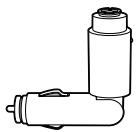
73646-01
Vehicle power adapter
69519-01
USB headset charger
73647-01
Soft gel ears tips and ear loop

73649-01
AAA battery charger

MOTOROLA

PALM

NOKIA

SONY

73650-01
73651-01
Mini USB charger
4-pack charge adapter kit
To order, please contact your Plantronics supplier or go to www.plantronics.com.
TROUBLESHOOTING
| PROBLEM | SOLUTION |
| My headset does not work with my phone. | Headset was not in pairing mode when mobile phone menu selections were made. See page 7 “Pairing”. Incorrect menu selections were made on your mobile phone. See page 7 “Pairing”. |
| I did not enter my password. | Your phone did not locate the headset. Repeat the pairing process on page 7. Incorrect menu selections were made on your mobile phone. Repeat the pairing process on page 7. |
| Callers cannot hear me. | Mute is turned on. Press both sides of the volume/ mute button simultaneously. |
| I cannot hear caller/dialling tone. | The headset is not turned on. Press the call control button for approximately 2 seconds until you hear a beep or see the indicator light glow blue to turn headset on. Your headset is out of range. Move the headset closer to the phone or Bluetooth device. Your headset battery is drained. Charge your battery using the AC charger, AAA battery, mini USB charger, or vehicle charging adapter above. See page 3 “Charging”. The listening volume is too low. Press the volume/ mute button to increase the sound heard in the headset. |
PRODUCT SPECIFICATIONS
| Talk time* | Up to 3.5 hours |
| Standby time* | Approximately 80 hours |
| Charge time | 3 hours |
| Range | Bluetooth standard 33 feet (10 metres) |
| Power requirements | 5V DC – 300 mA |
| Battery type | Lithium Ion |
| Version | Bluetooth 2.0 |
Supports Bluetooth Hands-Free and Headset Profiles.
*Performance may vary by device.
TECHNICAL ASSISTANCE
The Plantronics Technical Assistance Center (TAC) is ready to assist you on 0800 410 014, or visit the Support section of our Web site at www.plantronics.com for technical support. You can also call the technical assistance center for accessibility information.
WARRANTY
For warranty information, please refer to the included product warranty card or visit www.plantronics.com.
FCC REQUIREMENTS PART 15
This device complies with Part 15 of the FCC Rules. Operation is subject to the following two conditions:
- This device may not cause harmful interference, and
- This device must accept any interference received, including interference that may cause undesired operation.
This equipment has been tested and found to comply with the limits for a Class B digital device, pursuant to Part 15 of the FCC Rules. These limits are designed to provide reasonable protection against harmful interference in a residential installation. This equipment generates, uses and can radiate radio frequency energy and, if not installed and used in accordance with the instructions, may cause harmful interference to radio communications.
However, there is no guarantee that interference will not occur in a particular installation. If this equipment does cause harmful interference to radio or television reception which can be determined by turning the radio or television off and on, the user is encouraged to try to correct interference by one or more of the following measures:
- Reorient or relocate the receiving antenna.
- Increase the separation between the equipment and receiver.
- Connect the equipment into an outlet on another circuit.
- Consult the dealer or an experienced radio/TV technician for help.
EXPOSURE TO RADIO FREQUENCY RADIATION
This device and its antenna must not be co-located or operated in conjunction with any other antenna or transmitter. To comply with FCC RF exposure requirements, only use supplied antenna. Any unauthorised modification to the antenna or device could void the user's authority to operate this device.
INDUSTRY CANADA NOTICE
Radio Equipment
The term "IC:" before the radio certification number only signifies that Industry Canada technical specifications were met. Operation is subject to the following two conditions: (1) this device may not cause interference, and (2) this device must accept any interference, including interference that may cause undesired operation of the device. "Privacy of communications may not be ensured when using this telephone." This product meets the applicable Industry Canada technical specifications of the RSS210.
DISPONIBLESÀ L'ACHAT
73646-01
SPÉCIFICATIONS DU PRODUIT
Telephone:831.458.7700
www.plantronics.com
PT
Plantronics, Inc.
345 Encinal Street
© 2006 Plantronics, Inc. All rights reserved. Plantronics, the logo design, Plantronics Discovery and Sound Innovation are trademarks or registered trademarks of Plantronics, Inc. The Bluetooth® word mark and logos are owned by Bluetooth SIG, Inc. and any use of such marks by Plantronics, Inc. is under licence. All other trademarks are the property of their respective owners.
Patents U.S. 5,210,791; EM 392600-0001; Patents Pending.
Printed in U.S.A.